iOS Direct Proxy Configuration Guide
Overview
Configure your iOS device to use ExpressNodes proxy servers directly through built-in iOS settings. This method routes all network traffic from your iPhone or iPad through our high-speed proxy servers without requiring additional apps.
Benefits
- System-Wide Protection: All apps and Safari traffic use the proxy
- No Additional Apps: Uses built-in iOS functionality
- Always Active: Works across all networks and apps
- High Performance: Direct connection to our optimized proxy servers
Configuration Steps
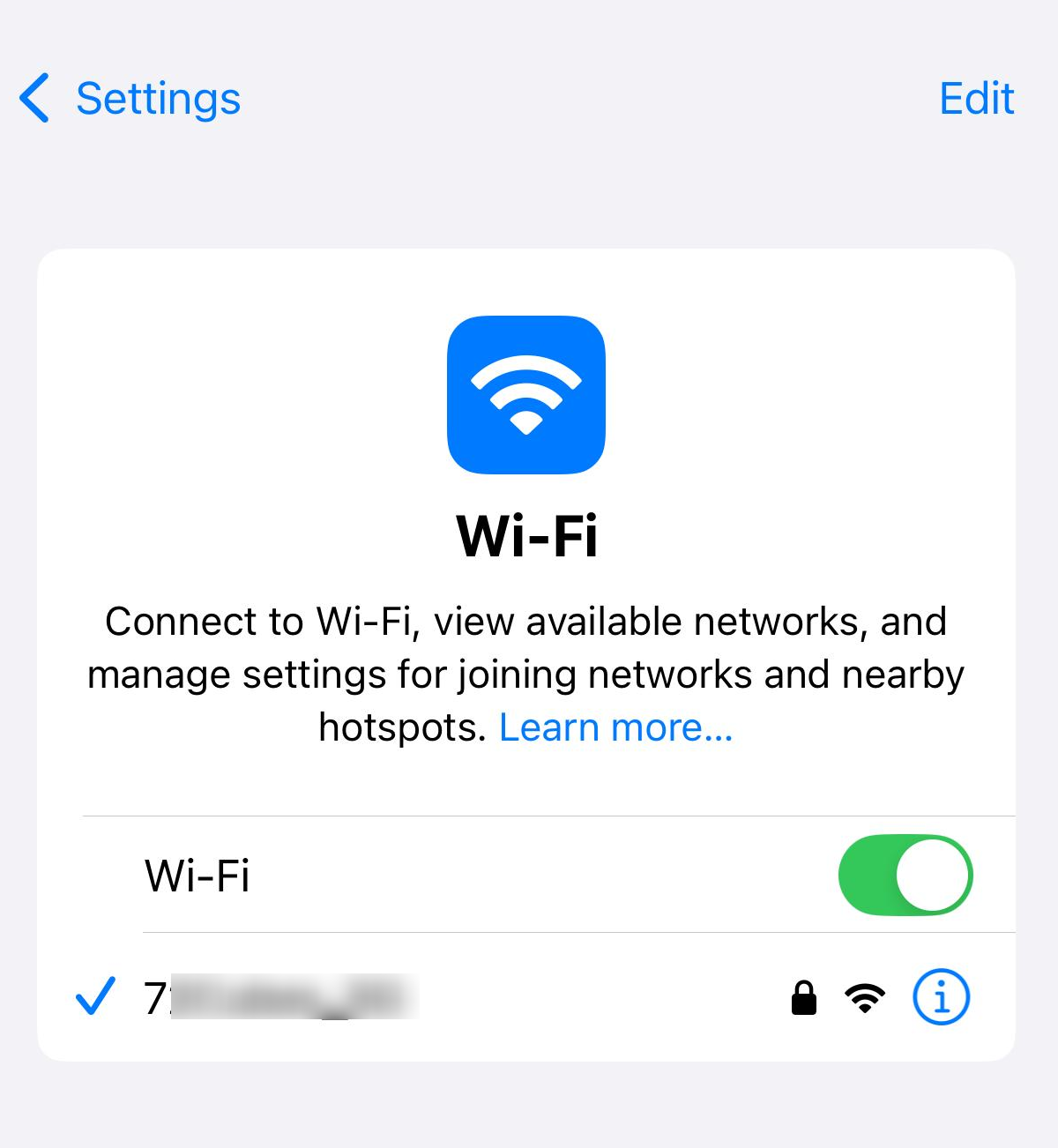
Step 1: Access Wi-Fi Settings
- Open Settings on your iOS device
- Tap Wi-Fi
- Tap the ⓘ (info) icon next to your connected network
Step 2: Configure HTTP Proxy
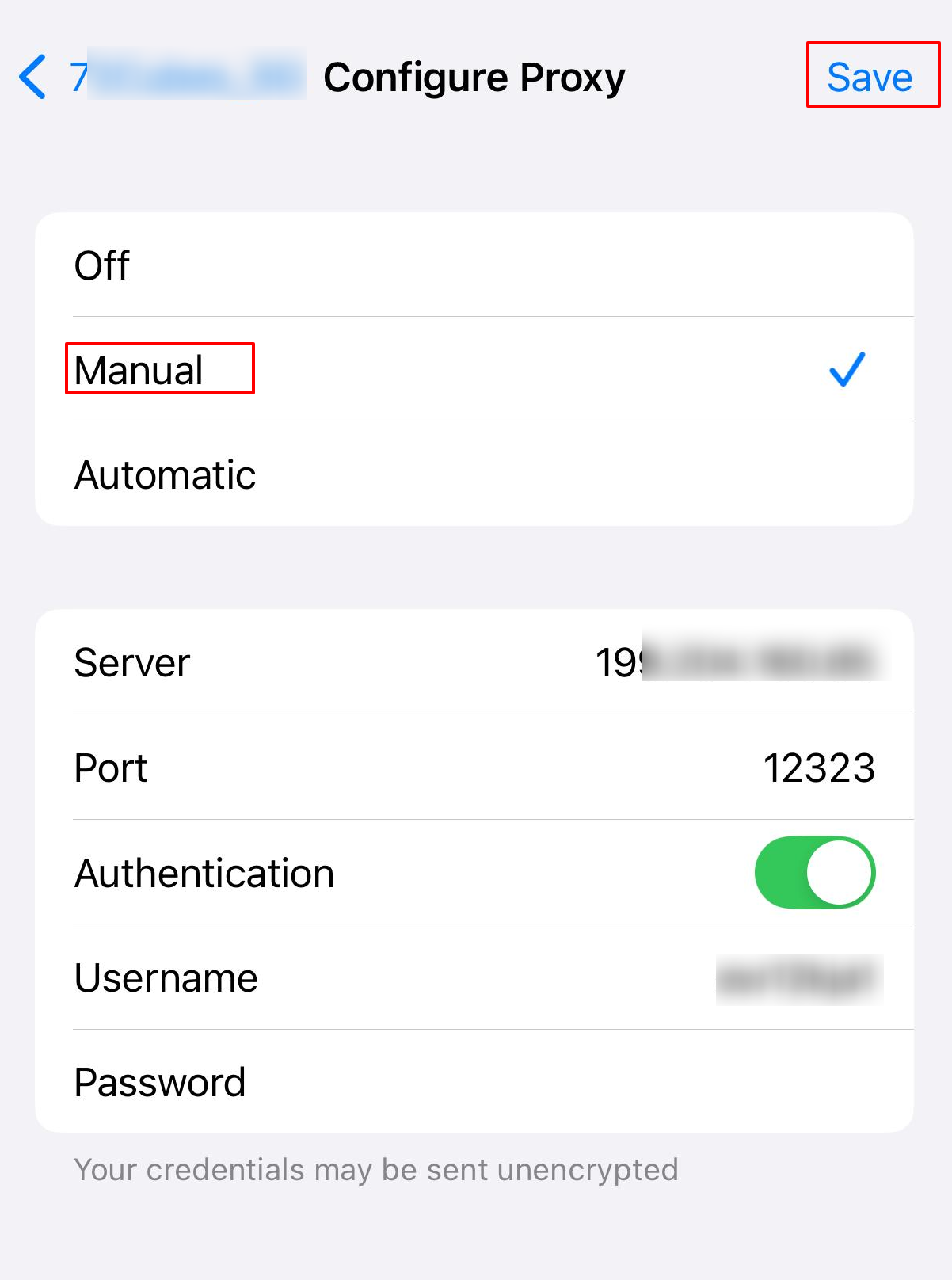
- Scroll down to HTTP PROXY section
- Tap Configure Proxy
- Select Manual
- Enter your proxy details:
- Server: Enter your proxy server IP address
- Port: Enter your proxy port number
- Authentication: Enable if your proxy requires authentication
- Enter Username and Password
- Tap Save in top-right corner
- Sign-in: After saving all settings, a pop-up will appear in the Wi-Fi settings. Enter your proxy username and password in the designated fields to authenticate your connection.
Cellular Data Configuration
- iOS currently does not support direct proxy connections on cellular data.
Troubleshooting
Common Issues
Connection Not Working
- Verify Proxy Details: Double-check IP address and port
- Check Authentication: Ensure username/password are correct
Specific Apps Not Working
- App Restrictions: Some apps may not respect system proxy settings
- Certificate Problems: Some enterprise apps may have certificate pinning
Quick Fixes
- Toggle Wi-Fi off and on
- Restart your iOS device
- Verify proxy settings are saved correctly
- Test with authentication disabled (if your proxy allows)
Frequently Asked Questions
Does this work with all apps?
Most apps respect iOS system proxy settings, but some banking and streaming apps may have restrictions.
Can I use different proxies for different networks?
Yes, iOS saves proxy settings per Wi-Fi network automatically.
What happens when I switch networks?
iOS remembers proxy settings for each Wi-Fi network. Cellular data proxy must be configured separately.
Support
Need Help?
If you encounter issues configuring Postman with our proxy service:
- Verify your proxy server details are correct
- Test the proxy configuration with a simple tool first
- Contact our support team with specific error details