Proxy Switcher Extension Guide
Overview
Proxy Switcher is a Chrome extension that allows you to easily manage and switch between different proxy configurations. It provides a simple interface for setting up proxy servers with authentication support.
Key Features
- Quick Proxy Switching: Easy enable/disable of proxy connections
- Multiple Protocol Support: Compatible with HTTP, HTTPS, and SOCKS5
- Authentication Support: Handles proxy authentication seamlessly
- Bypass Rules: Configure websites that should bypass the proxy
Installation
Step 1: Install Extension
- Open the Chrome Web Store
- Search for "Proxy Switcher"
- Click "Add to Chrome"
- Confirm by clicking "Add extension" in the dialog
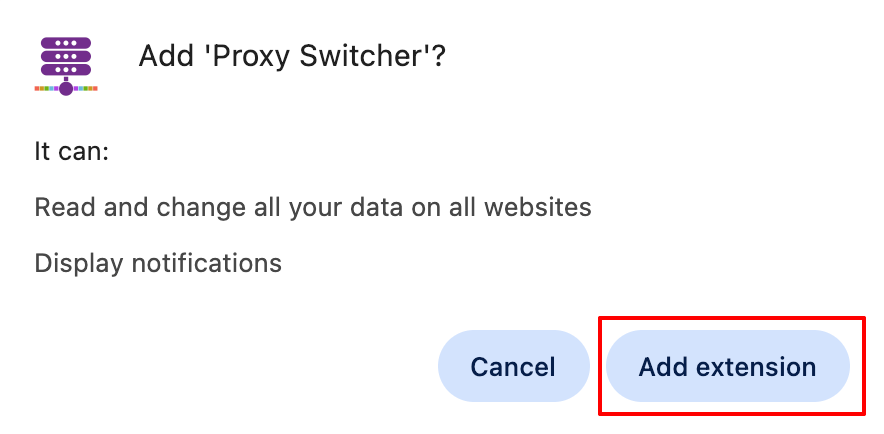
After installation, the Proxy Switcher icon will appear in your browser toolbar.
Configuration
Step 1: Access Extension Settings
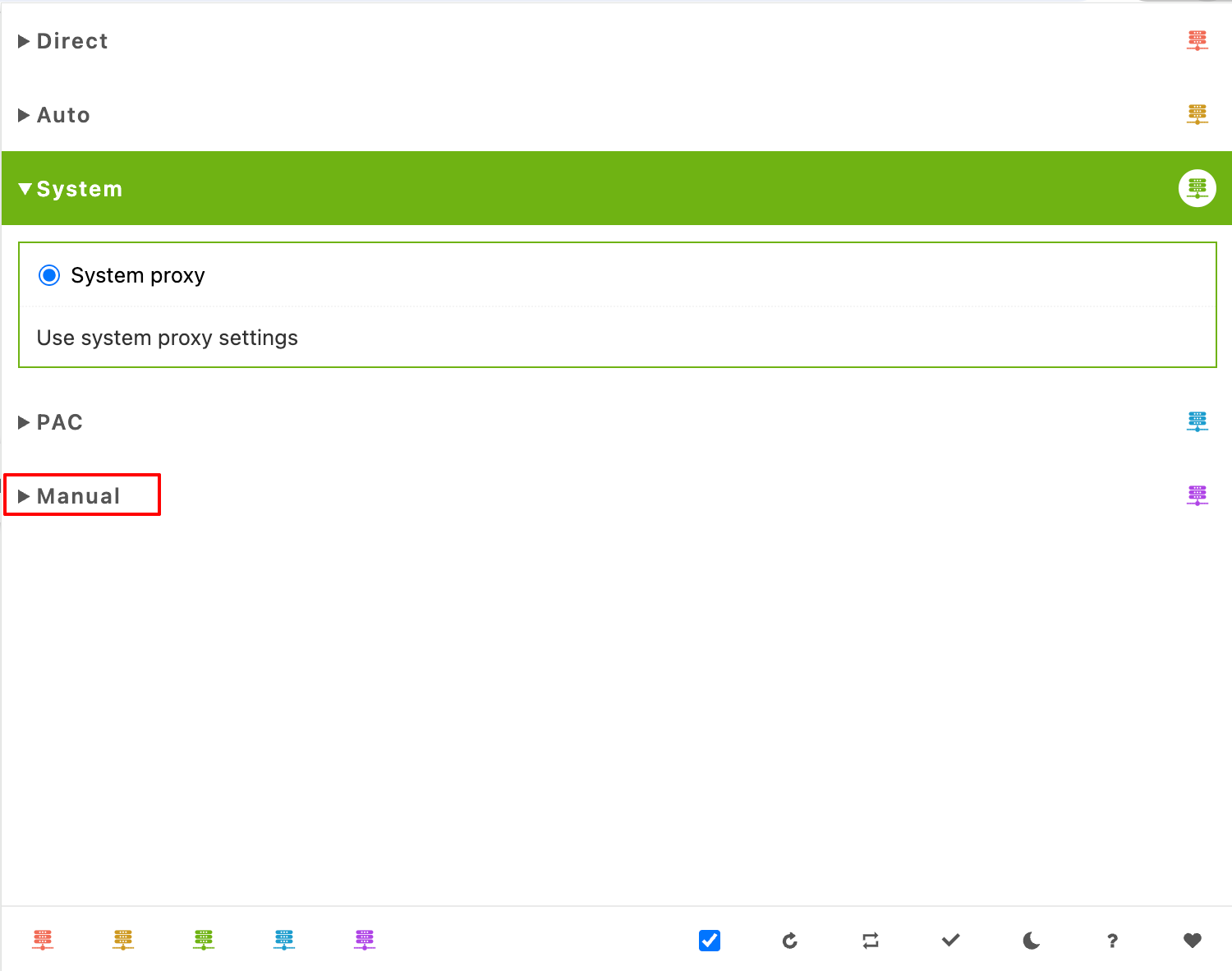
- Click the Proxy Switcher icon in Chrome toolbar
- Click on Manual configuration option
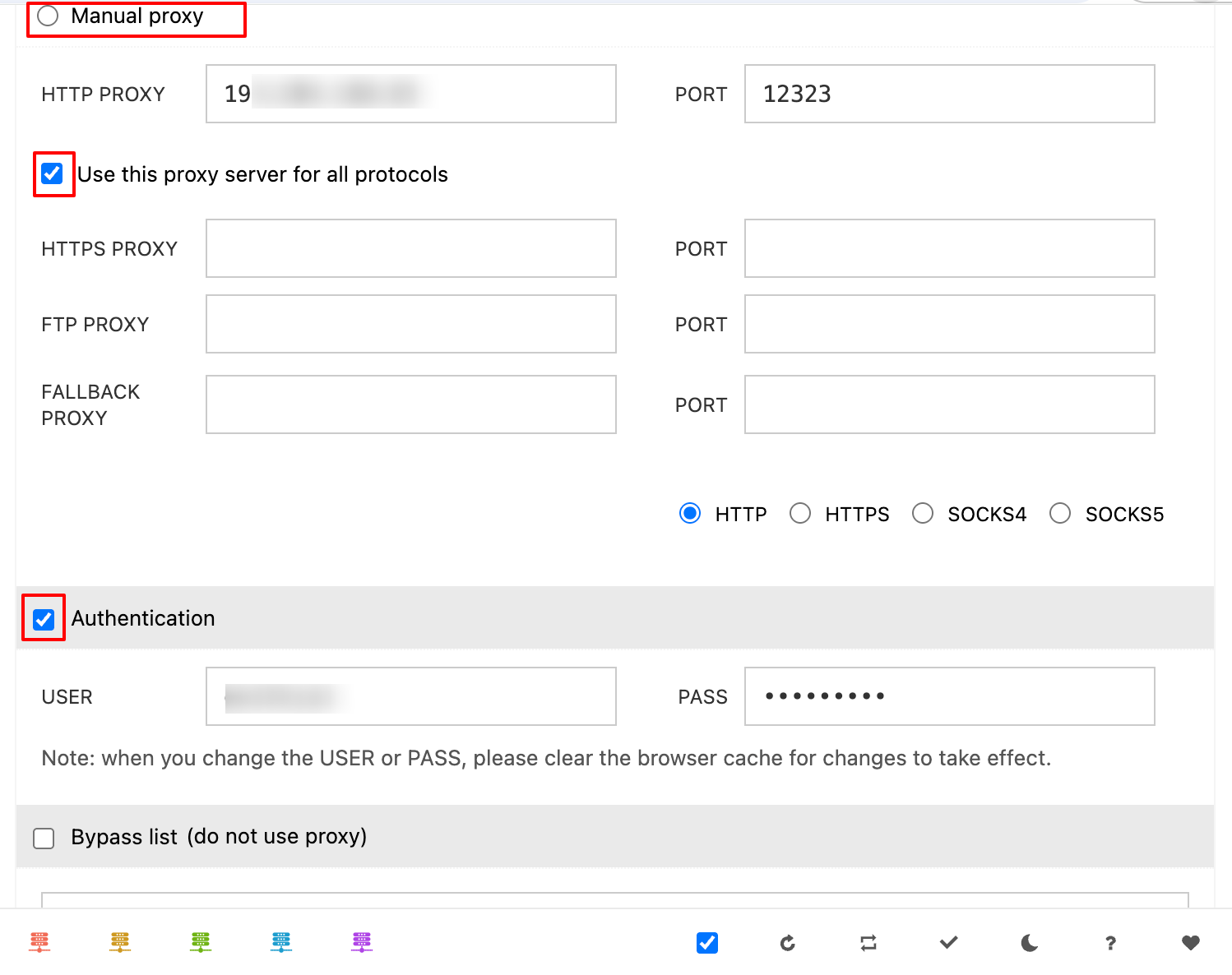
Step 2: Configure Proxy Server
- Select your Proxy Type (HTTP, HTTPS, or SOCKS5)
- Enter your Proxy IP address
- Enter your Proxy Port number
- Check the box for Use this proxy server for all protocols
Step 3: Set Up Authentication
- Enter your proxy Username and Password
- Select the Authentication checkbox
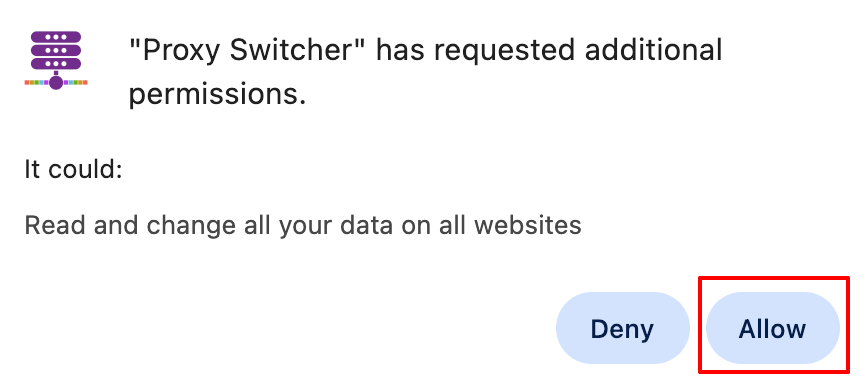
- A permission prompt will appear: "Proxy Switcher has requested additional permissions"
- Click Accept to grant the required permissions
Step 4: Configure Bypass Rules (Optional)
- Add websites that should bypass the proxy in the Bypass list
- Select the Bypass list checkbox to enable this feature
Usage
Activating the Proxy
- Click the Proxy Switcher icon in Chrome toolbar
- Select the Manual Proxy radio button to activate
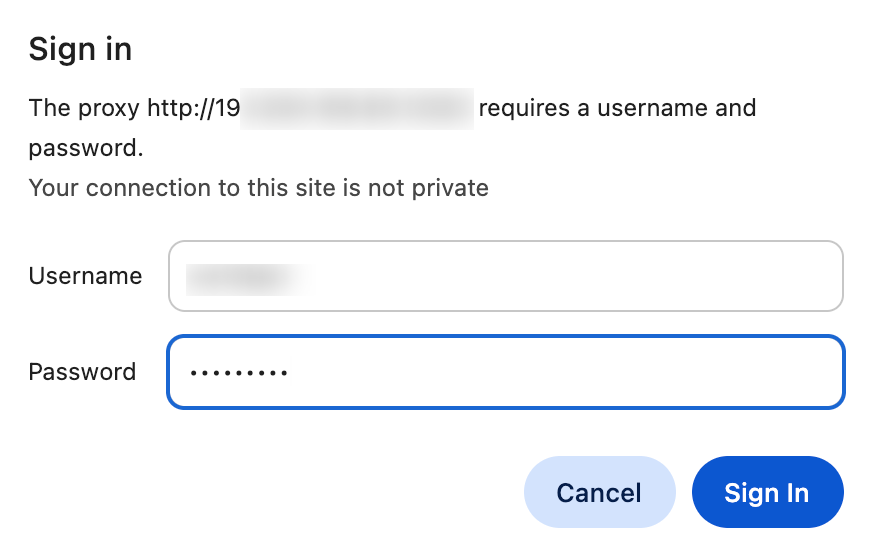
- A pop-up will appear asking for your proxy username and password
- Enter your credentials and click Sign In
Disabling the Proxy
- Click the Proxy Switcher icon
- Select System
- Select the System proxy radio button
Common Issues
Authentication Pop-up Keeps Appearing
- Verify username and password are correct
- Check if your proxy service is active
- Try re-entering credentials in the pop-up
Proxy Not Connecting
- Double-check proxy IP and port settings
- Verify proxy type matches your service
- Test with a different website
Extension Not Working
- Ensure the extension is enabled in Chrome
- Try restarting Chrome browser
- Reinstall the extension if issues persist
Need Help?
If you encounter issues configuring Proxy Switcher:
- Verify your proxy server details are correct
- Test your connection with our verification tool
- Contact ExpressNodes support with specific error messages